Video compression can reduce quality because most consumer video compression is lossy. The encoder makes a smaller file by representing the picture and sound more efficiently and discarding information it considers less important. The real question is not whether the output is mathematically identical, but whether you can see or hear a meaningful difference in the way you use the video.
A good compressed video can look remarkably close to its source. A setting that works for one recording can still look poor on another, though. You should choose a quality level based on the content and compare the actual result before deleting an original.
Does video compression reduce quality?
Yes, lossy video compression reduces the information retained from the source. That does not mean every viewer will notice the reduction.
Modern codecs do not store every frame as a complete independent picture. They describe visual detail efficiently and reuse information across frames. When the encoder has enough data available, the result can look close to the source. When it has too little, artifacts become visible.
Typical compression artifacts include:
- Blocky areas around movement
- Smearing or lost texture
- Bands in skies and other smooth gradients
- Noisy or unstable shadows
- Soft text and fine detail
- Changed color or brightness
- Audio that sounds thin, metallic, or less spacious
The source matters as much as the preset. A steady shot against a simple wall is easier to compress than handheld footage of water, confetti, foliage, or a busy concert.
This is why I avoid promising that a particular setting is “visually lossless” for every video. The honest answer comes from the output itself.
Is all video compression lossy?
No. Lossless video codecs exist, and some production formats preserve far more information than delivery formats. However, lossless files are usually much larger and are not the common choice when your goal is to free storage on an iPhone or make a video easier to share.
H.264 and HEVC are common consumer delivery codecs. Apple describes HEVC, also known as H.265, as offering better compression than H.264 while preserving the same visual quality. This means HEVC can often reach a similar-looking result with less storage than H.264.
That codec-level comparison is not a guarantee for every export. Encoder quality, settings, source material, and playback support still matter.
Compatibility is the other side of the choice. Apple notes that H.264 is more broadly compatible, while support for HEVC depends on the device, operating system, resolution, and frame rate. A smaller file is not an improvement if the television, editor, website, or recipient cannot play it properly.
What determines compressed video quality?
Several settings work together. Looking at just one can lead you to the wrong conclusion.
How does bitrate affect quality?
Bitrate is the amount of data used over time. Giving an encoder more data generally gives it more room to preserve detail, but it also creates a larger file.
Reducing bitrate can produce major savings without an obvious difference at first. Keep reducing it, and the encoder eventually has to simplify textures, motion, and color transitions. The point where that becomes distracting depends on the video.
Apple’s current Compressor settings guide reflects this relationship: bitrate can be selected automatically from source characteristics and device compatibility or controlled manually. Apple also offers faster and slower HEVC encoder modes, with the slower option described as higher quality.
Does lower resolution reduce quality?
Usually, yes. Reducing a 4K video to 1080p removes pixels. Fine detail is no longer present in the output at the original resolution.
That can still be the right trade-off. If you mainly watch a clip on a phone or send it in a chat, the difference may matter less than the storage saving. If you crop, stabilize, or display the video on a large 4K screen, keeping the original resolution has more value.
Resolution does not guarantee quality. A heavily compressed 4K file can look worse than a carefully encoded 1080p file.
Does frame rate affect quality?
Reducing frame rate removes moments in time. Motion can look less smooth, especially in sports, panning shots, games, and recordings captured at a high frame rate for slow motion.
Keeping more frames also means the encoder has more pictures to represent. At the same bitrate, those frames compete for data. This is another reason you cannot judge quality from resolution alone.
Does the codec change quality?
The codec decides how the video is represented. A more efficient codec can often preserve a similar appearance with a smaller file, but it may require newer hardware or software.
Apple’s HEIF and HEVC support guide explains that iCloud Photos preserves HEVC media in its original format, resolution, and frame rate. Other sharing methods may automatically make a more compatible H.264 version for a recipient. Therefore, a video you intentionally compressed may be converted again later during sharing.
Each lossy conversion can discard more information. If you expect to edit and export a video repeatedly, keep the best available source and compress the final delivery copy once.
How do I compare compressed video quality?
Compare the original and compressed versions using the same conditions. Changing screens, brightness, playback size, or network quality can hide or exaggerate differences.
I recommend this process:
- Let both videos become fully available on the device before comparing.
- Match the same timestamp in the original and compressed copy.
- View both at the same size and screen brightness.
- Check the beginning, middle, and end for playback or synchronization issues.
- Repeat the comparison on the largest screen you expect to use.
- Listen with headphones if speech, music, or spatial sound matters.
- Share a test copy through the real destination when compatibility is important.
Do not rely on a single paused frame. Video quality is about motion over time. Play difficult sections at normal speed, then pause if you notice a problem.
Which scenes should I inspect?
Start with the parts that are hardest to encode:
- Fast camera movement or action
- Water, smoke, snow, leaves, hair, and crowds
- Fine patterns in clothing or architecture
- Dark scenes and visible sensor noise
- Skies, walls, and soft gradients
- Small text, screen recordings, and subtitles
- Bright HDR highlights
Faces deserve special attention as well. A technically small difference can still feel important when skin texture or facial detail changes.
You do not need to inspect every frame. Pick representative sections and every moment you know is demanding. Your intended use defines acceptable quality.
Does HDR change the comparison?
Yes. An HDR source and SDR output can have the same resolution while looking clearly different.
HDR depends on more than pixel dimensions. The codec, bit depth, color information, display, and playback app all participate. If any part of the path does not handle HDR correctly, highlights, contrast, and colors can change.
Apple’s HDR editing guidance shows that iMovie can export either HDR or SDR from an HDR project. Apple also points to HEVC 10-bit for high-quality HDR exports in Final Cut Pro. Therefore, you should confirm the output mode instead of assuming a 4K compressed copy remains 4K HDR.
Compare HDR on an HDR-capable display in a supported app. Look at bright windows, lamps, reflections, sunsets, and saturated colors. An SDR conversion may be entirely acceptable for compatibility, but it is still a creative and quality change you should recognize.
Does video compression affect audio?
It can. A video file contains video and one or more audio tracks, and the audio may be encoded separately with its own format and bitrate.
Listen for speech clarity, music detail, background noise, channel balance, and synchronization. Check the complete ending too; an export problem can leave most of a file looking correct while the final segment is incomplete.
Some iPhone recordings include more advanced sound features. Apple documents Spatial Audio recording and Audio Mix on supported models. If those capabilities matter to you, verify them in the compressed copy rather than checking only whether sound is present.
Which compression setting should I choose?
Start with the least aggressive setting that reaches your storage goal. You can always make a smaller copy, but you cannot add discarded source detail back to an already compressed file.
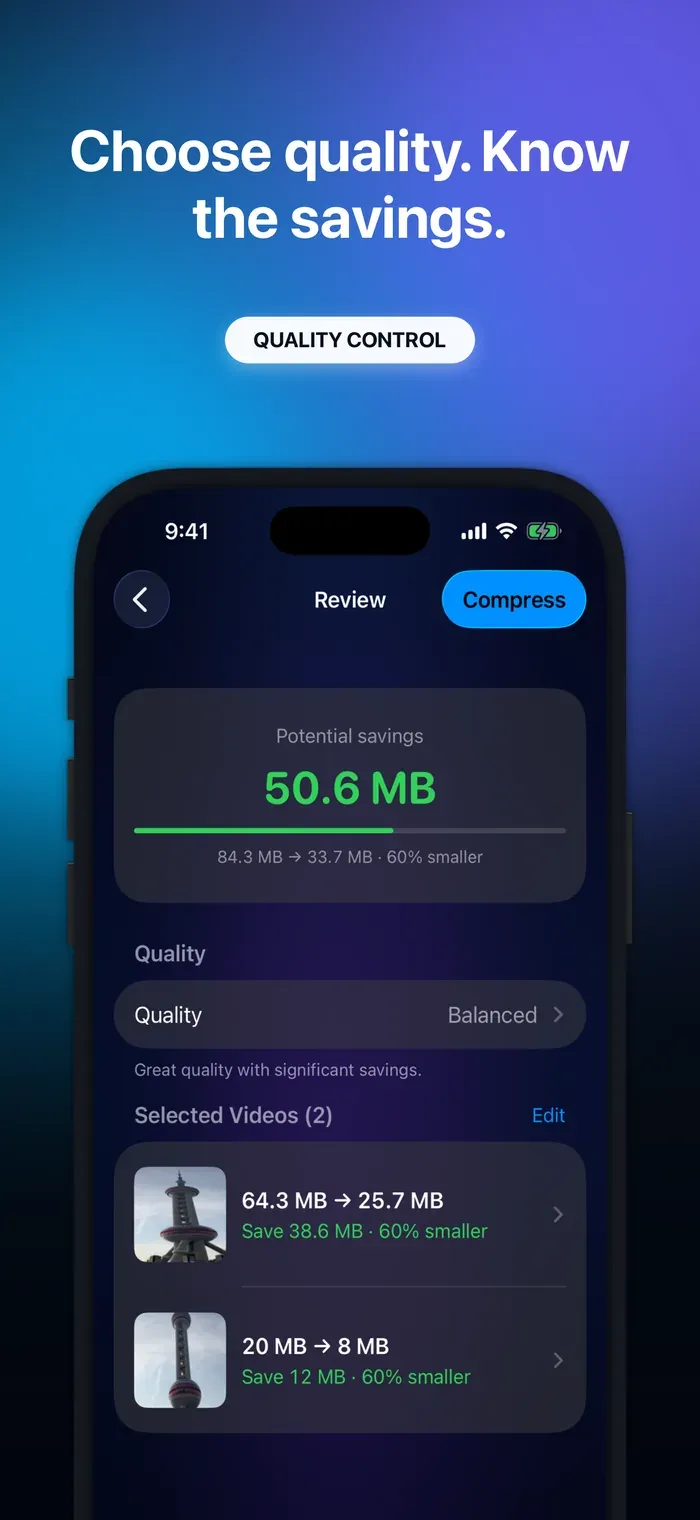
A high-quality preset fits important recordings and larger screens. A balanced preset makes sense when you want useful savings without targeting the smallest result. A maximum-saving option suits replaceable videos and cases where file size matters more.
These are starting points, not guarantees. Two videos selected together can react differently to the same preset because their motion and detail differ.
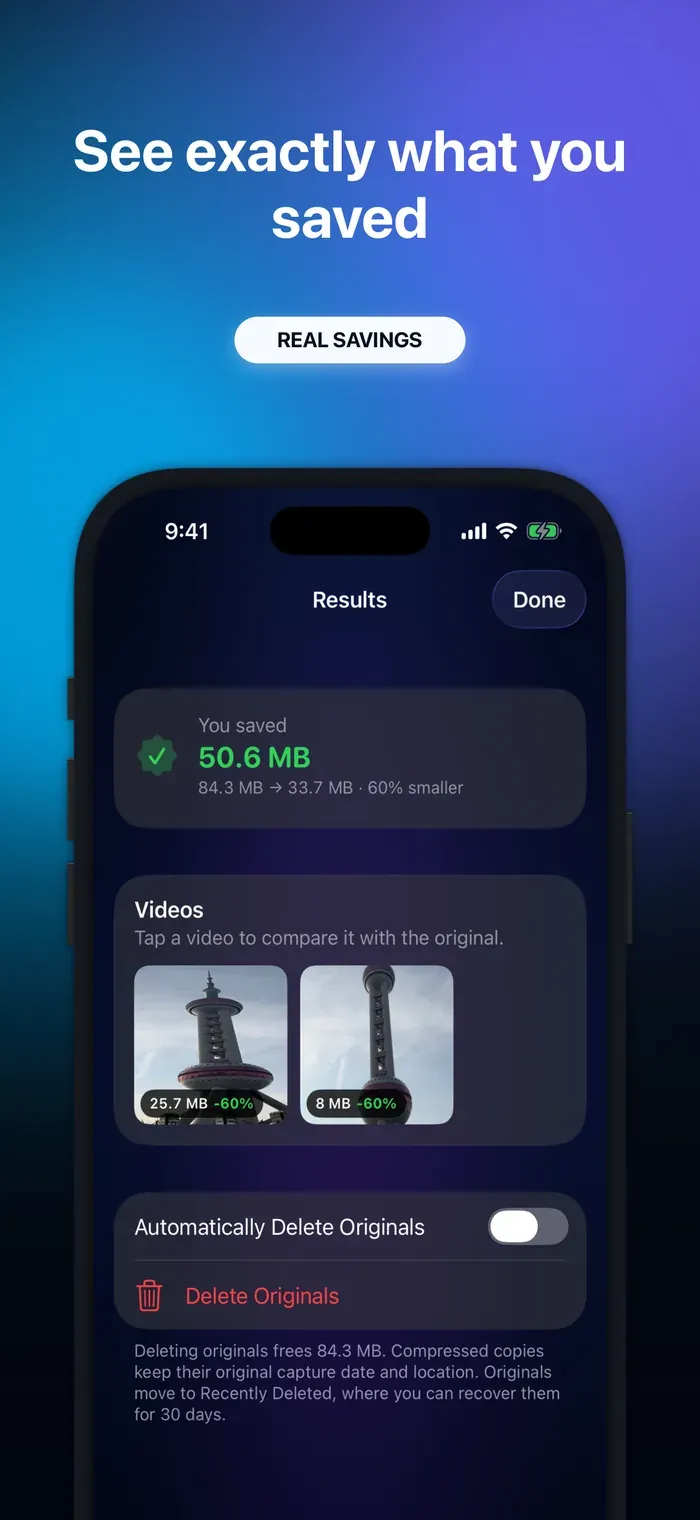
Video Compressor offers High Quality, Balanced, and Max Saving presets, with an estimated saving before compression. More importantly, it lets you compare the real original and compressed result side by side before you decide whether to delete anything. Compression runs on your iPhone, while Apple services may download an iCloud original when required.
Use the estimate to choose a direction and the finished output to make the decision. The app screenshots below show a measured marketing example, not a guaranteed reduction for every source.
Can I restore quality after compression?
You cannot fully restore information discarded by lossy compression. Sharpening, upscaling, and noise reduction may change how a video looks, but they do not recreate the exact captured detail.
This is why keeping the original matters when a recording is irreplaceable or likely to be reused. If storage is the concern, archive the original to separate storage and keep the compressed copy on your phone.
Avoid using a compressed copy for repeated exports when the original is available. Edit from the original, then create the format you need at the end.
Conclusion
Video compression usually reduces technical quality, but it does not always create a visible or meaningful loss. Codec efficiency, bitrate, resolution, frame rate, HDR, audio, source complexity, and playback conditions all shape the result.
The most reliable quality test is a direct comparison of your own video in its real destination. Check difficult scenes, motion, gradients, text, faces, HDR highlights, and audio. Keep the original whenever you may need a better export later.
If you want to reduce storage while staying in control of that trade-off, Video Compressor lets you select a quality preset, review estimated savings, and compare the completed copy before choosing whether the original should remain.
Thanks!